¶ Domains
You manage here the domains used in your phishing links. For where they plug into campaigns, see Environments.
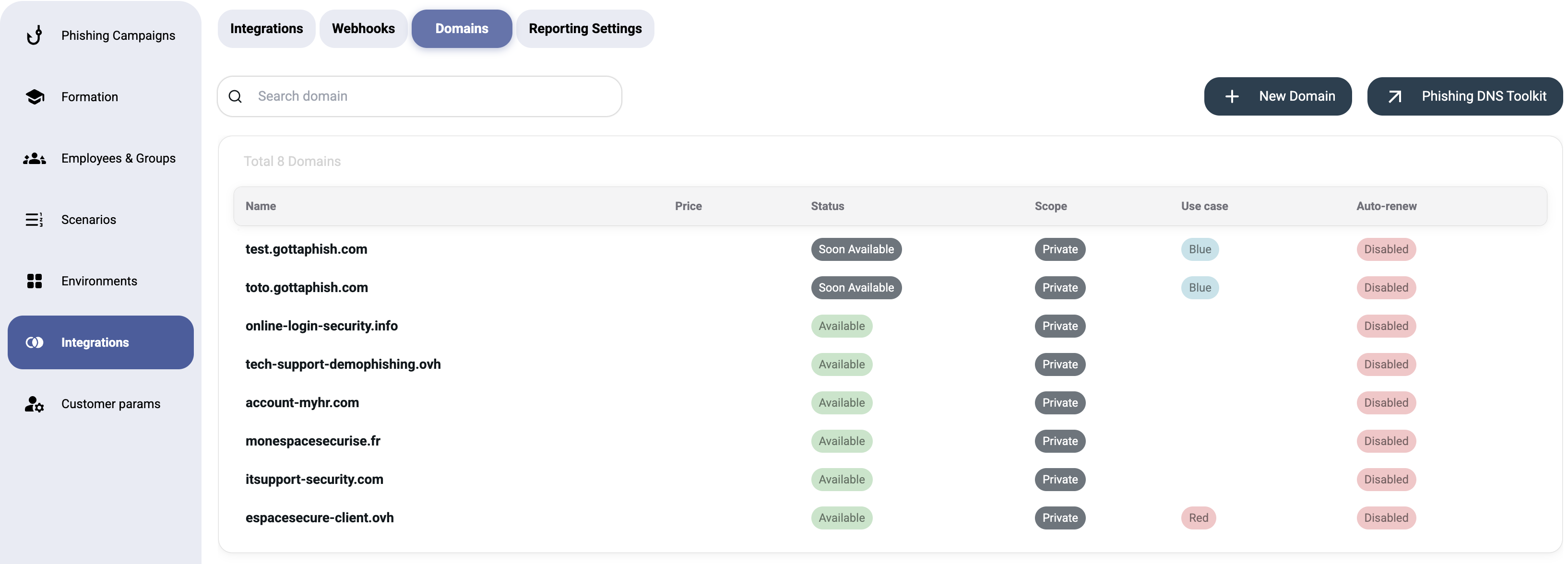
The Domains tab manages the phishing domains used in your campaign URLs. These are the domains that appear in the links your targets click.
¶ Domain List
The domains table shows:
| Column | Description |
|---|---|
| Name | Domain name (e.g., monespacesecurise.fr) |
| Price | Domain cost (if purchased through the platform) |
| Status | DNS verification status (Active, Pending, etc.) |
| Scope | Who can use the domain — Private, Organisation, or Public (see below) |
| Use case | What the domain is for — Phishing (blue/red), Explanation email or White-label (see Use cases below) |
| Auto-renew | Whether the domain renews automatically (Yes / No), with the owning customer shown as "Owned by X" |
¶ Scope levels
- Private — usable only by this customer.
- Organisation — usable by this customer and all of its sub-tenants.
- Public — usable by every client on the platform.
Tip: hover any column header in the table for an inline description of that field.
¶ Actions
- + New Domain — register or add a new phishing domain
- Phishing DNS Toolkit — configure DNS records (SPF, DKIM, DMARC) for your phishing domains to maximize email deliverability
¶ Adding a domain
Click + New Domain. There are two ways to add one:
- Buy through the platform — the domain is registered for you through our provider. Choose its scope and use case, then confirm; a domain license or a purchase order is used.
- Import your own domain — enable “I already own this domain — transfer its nameservers”. After creation the platform shows the nameservers to set at your registrar; pricing, scope and license selection are skipped. The domain becomes active once the nameserver delegation has propagated.
The Origin column shows how each domain was added — Bought or Imported. Imported domains can be used for Phishing or Explanation email purposes.
¶ Use cases
When you add a domain you choose what it is for. This decides how the domain can be used and which DNS records it needs:
- Phishing — blue (phishing simulation) — the standard awareness domain; it appears as the sender and/or in the links of your simulation emails. This is the default.
- Phishing — red (red team) — a domain used for red-team engagements rather than awareness simulations.
- Explanation email domain — reserved for sending explanation (educational) emails after a campaign. The sender used on this domain is configured per customer (see Explanation email).
- White-label domain — a reseller's main branded domain: the workspace, login screen and links are served from it. Reserved for reseller accounts and set up by your administrator, not from the domain picker (see Resellers & White-label).
¶ DNS Configuration
For reliable email delivery, each phishing domain should have:
| Record | Purpose |
|---|---|
| SPF | Authorizes the platform's servers to send email from your domain |
| DKIM | Cryptographically signs emails for authenticity |
| DMARC | Defines handling policy for failed SPF/DKIM checks |
| MX | Mail exchange records (if using IMAP reporting) |
Important: Properly configured DNS is critical for email delivery. Without SPF/DKIM, most email providers will reject or quarantine your phishing simulations.