¶ Environments & Landing Pages
Environments define the phishing persona — the sender identity, domain, and landing page that your targets will see. Think of an environment as the "brand" behind a phishing simulation (e.g., Microsoft Outlook, Google, an internal HR portal).
Access this section from the Environments item in the left sidebar.
This section has two tabs:
- Environments — manage phishing sender profiles
- Environments Landing Pages — manage the fake login/landing pages
¶ Environments
¶ Environments List
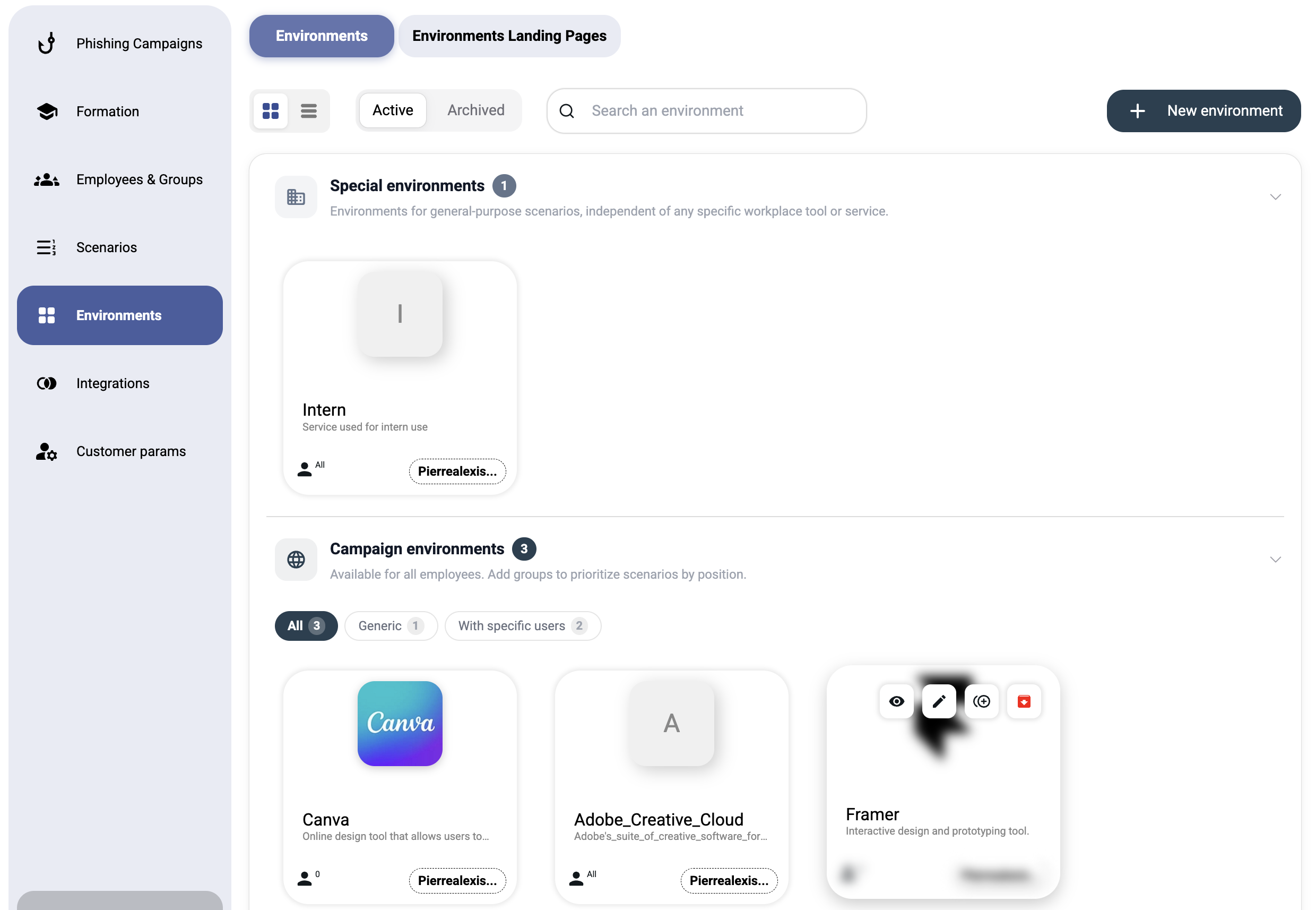
Environments are displayed as cards, organized into named categories (e.g., "Microsoft Environments", "Google Environments"). Each card shows:
| Element | Description |
|---|---|
| Logo / Icon | Visual brand identifier |
| Name | Environment name (e.g., "Microsoft 365 Login") |
| Category | The group this environment belongs to |
| Landing page | Which landing page is linked |
| Sender | The from-address used |
| Status badge | Active or Archived |
| Action menu | Edit, duplicate, archive, or delete |
Use the search bar to filter by name, and the Active / Archived toggle to switch views.
¶ Creating a New Environment
Click + New environment to open the creation form.
¶ General Information
| Field | Required | Description |
|---|---|---|
| Name | Yes | Environment name (e.g., "Microsoft 365 Login") |
| Description | No | Brief description of the phishing theme |
| Logo URL | No | URL to a logo image displayed in the phishing email |
¶ Landing Page
| Field | Required | Description |
|---|---|---|
| Landing Page | Yes | Select an existing landing page from the dropdown. This is the fake page targets see after clicking the phishing link |
Note: You must create at least one landing page before creating an environment. See the Landing Pages section below.
¶ Sender Configuration
| Field | Required | Description |
|---|---|---|
| From | Yes | The sender email address targets will see (e.g., security@microsoft-verify.com) |
| Phishing Domain | Yes | Select the domain used for the phishing URL |
¶ Domains
The Domains section shows which domain(s) are associated with this environment for phishing URLs. Domains must first be configured in Integrations → Domains.
¶ Landing Pages
Landing pages are the fake web pages that targets see after clicking a phishing link. They typically mimic a login portal to capture credentials or simply display an awareness message.
¶ Landing Pages List
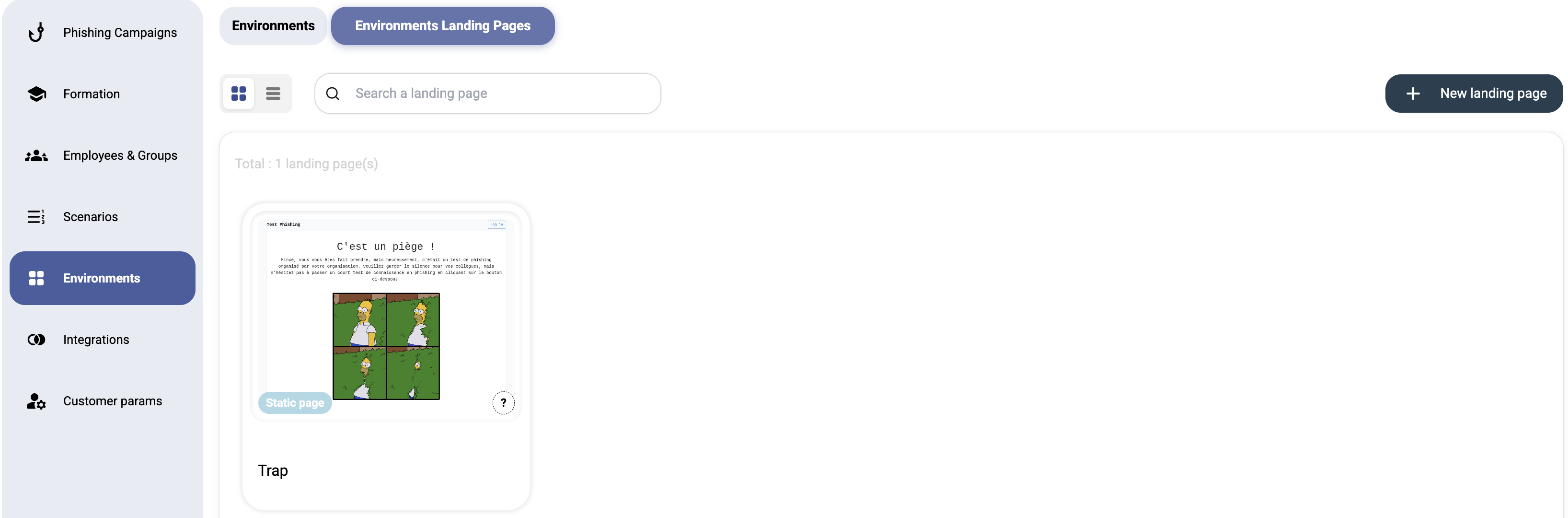
Switch to the Environments Landing Pages tab to see all landing pages:
- Each page is shown as a preview card with a thumbnail
- A badge indicates the page type: Static page or Dynamic page
- Click a page to view or edit it
¶ Creating a New Landing Page
Click + New landing page to open the creation dialog. Choose the page type:
¶ Dynamic Page
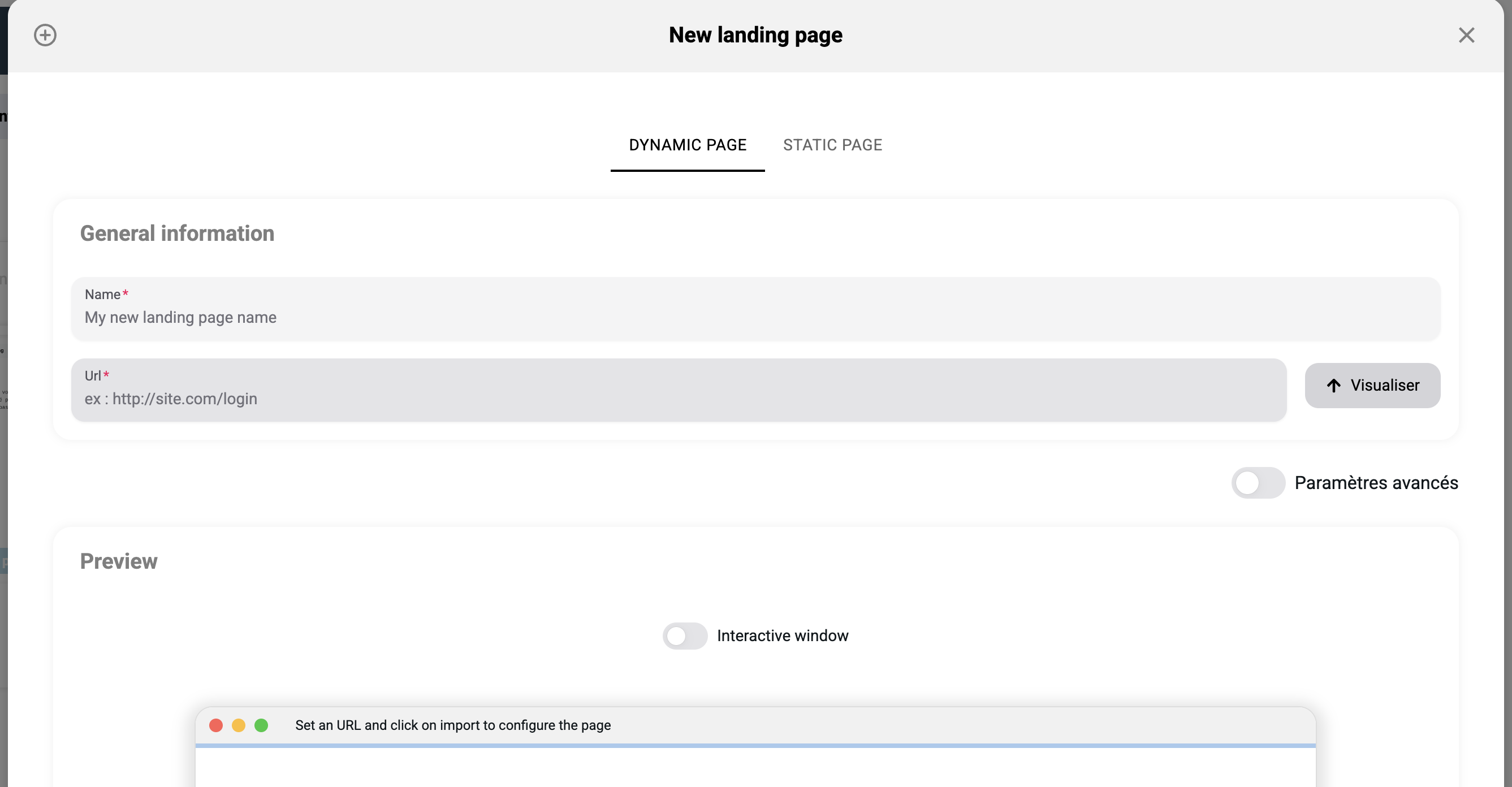
A dynamic page is imported from a real URL. The platform fetches the target website and creates an interactive copy.
| Field | Required | Description |
|---|---|---|
| Name | Yes | Landing page name (e.g., "Microsoft Login Clone") |
| URL | Yes | The URL to import (e.g., http://site.com/login) |
After entering the URL:
- Click Visualiser (Import) to fetch and render the page
- The Preview section shows how the page will look
- Toggle Interactive window to interact with the imported page
- Toggle Paramètres avancés (Advanced settings) for additional configuration options
Tip: Dynamic pages are ideal for creating realistic copies of well-known login portals (Microsoft, Google, corporate intranet).
¶ Static Page
A static page uses custom HTML that you write or paste directly.
This is useful for:
- Simple awareness landing pages ("You've been phished! Here's what to look for...")
- Custom-designed pages that don't need to mimic an existing site
- Educational content shown after a user clicks a phishing link
¶ Editing a Landing Page with AI
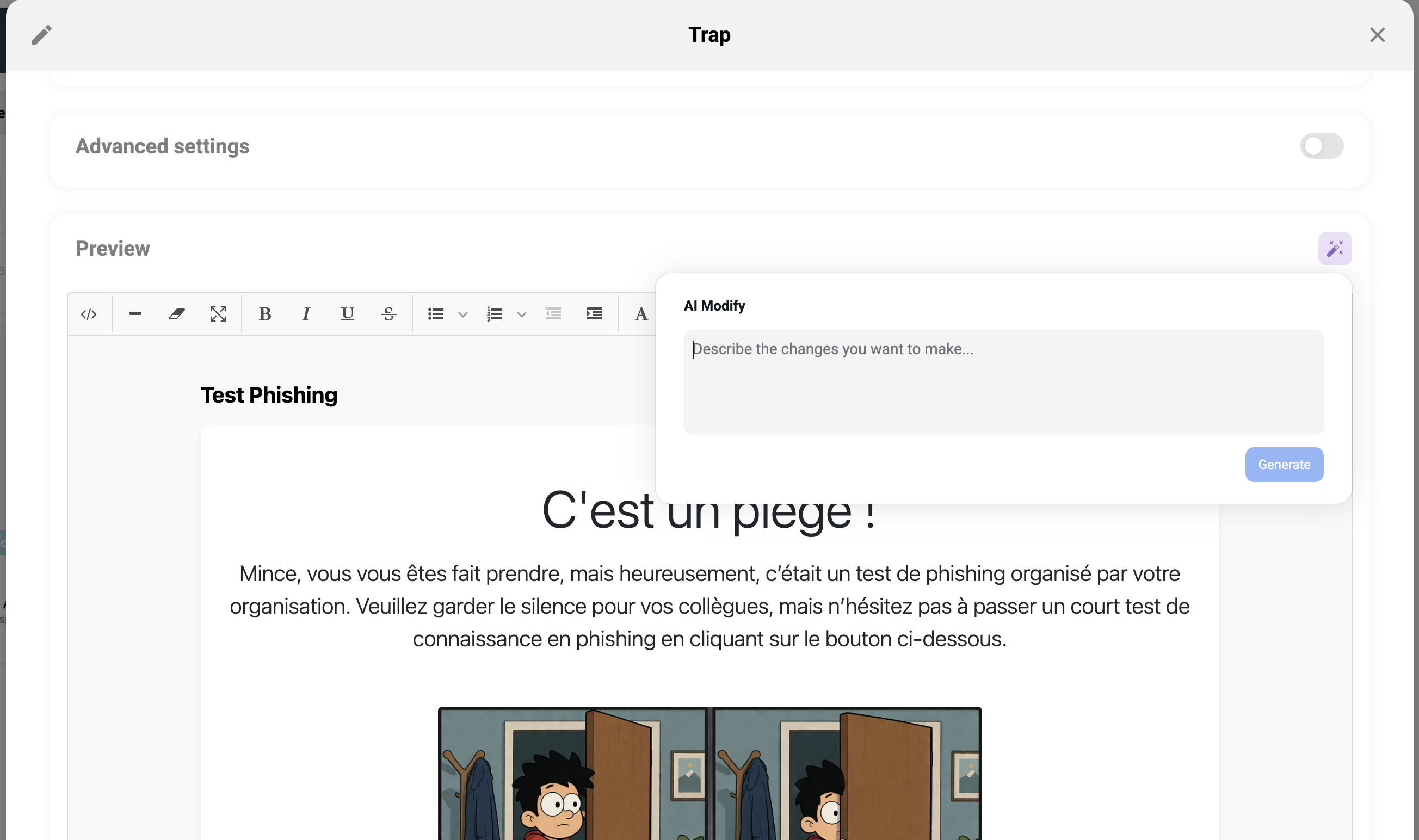
When editing an existing landing page, you can use the built-in AI assistant to modify its content quickly.
Click the AI Edit button in the landing page editor to open the prompt panel.
| Field | Description |
|---|---|
| Prompt | Describe the change you want (e.g., "Translate this page to English", "Make the button red", "Add a warning banner at the top") |
| Apply | Sends your prompt and updates the page preview instantly |
Examples of what you can ask:
- "Change the title to 'Security Alert'"
- "Remove the footer"
- "Translate all text to French"
- "Make the form fields bigger"
Tip: Use AI editing to quickly adjust imported dynamic pages without touching the HTML manually.
¶ How Environments, Landing Pages, and Scenarios Work Together
Environment
├── Sender identity (From address, Logo)
├── Phishing domain (URL the target clicks)
├── Landing page (what the target sees after clicking)
│
└── Scenario (email template)
    ├── Uses the environment's sender identity
    ├── Links to the environment's phishing URL
    └── Targets a group of employees
        │
        └── Campaign
            └── Combines: Group + Scenario(s) + Schedule
Key concept: An environment is reusable. One environment can be used by multiple scenarios, and multiple scenarios can be included in a single campaign.
¶ Best Practices
- Create environments that mirror real threats — if your organization uses Microsoft 365, create a realistic Microsoft-themed environment
- Use dynamic landing pages for realism — importing a real login page is far more convincing than custom HTML
- Keep landing pages updated — login portals change their design; re-import periodically
- Match sender and landing page — a Google-themed email should lead to a Google-themed landing page
- Include an educational reveal — configure the landing page to show an awareness message after credential capture
¶ Archiving, deleting and labels
- Archive / Unarchive — set aside an environment you no longer use without deleting it; archived environments can be restored.
- Delete permanently — remove an archived environment for good (irreversible).
- Clone — duplicate an environment to reuse its configuration.
- Labels — add labels to an environment's scenarios to organize and filter them.
¶ Phishing link and URLs
When configuring an environment you also control where the phishing link points:
- Landing page URL / Custom URL — the URL shown in the phishing email; use the suggested one or set a custom URL.
- Suggested login URL — a realistic login URL proposed for the impersonated service, to make the simulation credible.